
I shared a post a while ago on how to create a color coded calendar in SharePoint. This is a no code (for real!) solution, and I’ve received some great feedback from it. One area I want to focus on are the colors.
Let’s go from blah

To, well, more colorful, not sure if I’d call this awesome or not (my color matching skills are lacking)

If you haven’t noticed, there are some colors which are really close to each other, and could easily be mistaken for each other. It’s rather frustrating. Also, they’re all pastels, which is nice but what if I want it to pop on the page?
You can setup a custom style sheet on your calendar page to override the colors. Unfortunately, this will not change the colors at the time you setup the calendars. To keep your colors straight, here’s the colors, and their associated values:
See the close similarities? 1 and 3; 4 and 6; 7, 8 and 9. You only have 5 unique colors to work with.
As you create your color coded calendar, make note of the color #s you’re using, this will be important when creating the new color scheme. And since we’re talking about color schemes, I highly recommend using a comfortable color scheme. You don’t want your calendar to hurt your users. You may only want to change a few colors instead of the entire collection. There are a lot of color schemes and combos online, if you want to create your own, check out http://colorexplorer.com/. Take some time and figure out your ideal color scheme.
Now that you have your colors, let’s get started! First thing you want to do is follow my other post and make your color coded calendar, click here to open the post. Your end result should be a spread of drab pastel colors, like my first image on this post.
Okay, now that you have your color coded calendar, let’s change some colors! You don’t have to change every color in the list, or you may want to. Up to you. I’m going to change colors 3, 4, 8 and 9, and use some real colors that pop.
How? Magical CSS classes:
.ms-acal-color# {
 BACKGROUND-COLOR: #xxxxxx
}
.ms-acal-selcolor# {
 BACKGROUND-COLOR: #xxxxxx
}
.ms-acal-apanel-color# {
 BORDER-COLOR: #xxxxxx;
 BACKGROUND-COLOR: #xxxxxx;
}
The above 3 classes of styles represent one color. The first class is the color you see when the page loads, and you haven’t clicked on the item. The second is the selected color when you hover on it. The third class is the color in the legend, on the left of the calendar view.
See at the end of the class name, before the {, is a #. This is just a place holder, you’ll want to swap this out with the color above you want to change. For example, if you want to change color 4, you’d update your CSS like:
.ms-acal-color4, .ms-acal-selcolor4, and .ms-acal-apanel-color4
You can copy and paste the CSS as many times as you need, for numbers 1 through 9. Within each section you’ll see BACKGROUND-COLOR: #xxxxxx, and in the last CSS you’ll see BORDER-COLOR :#xxxxxx as well. This is where your new color scheme comes into play.
I’m going use this neat color scheme I quickly found:

Any scheme you find you’ll want to find the HTML, hexidecimal, or CSS value, for your colors (naming varies depending on the site you get it from). It’ll be a 6 character code, usually starting with #. Take the above CSS classes and create your new CSS classes using the colors your picked for your previously made calendar, and specify your own color palette. Here’s what mine will look like:
.ms-acal-color3{
 BACKGROUND-COLOR: #C0362C
}

.ms-acal-selcolor3{
 BACKGROUND-COLOR: #C0362C
}

.ms-acal-apanel-color3{
 BORDER-COLOR: #C3B7AC; BACKGROUND-COLOR: #C0362C;
}

.ms-acal-color4{
 BACKGROUND-COLOR: #816C5B
}

.ms-acal-selcolor4{
 BACKGROUND-COLOR: #816C5B
}

.ms-acal-apanel-color4{
 BORDER-COLOR: #C3B7AC; BACKGROUND-COLOR: #816C5B;
}

.ms-acal-color8{
 BACKGROUND-COLOR: #668D3C
}

.ms-acal-selcolor8{
 BACKGROUND-COLOR: #668D3C
}

.ms-acal-apanel-color8{
 BORDER-COLOR: #C3B7AC; BACKGROUND-COLOR: #668D3C;
}

.ms-acal-color9{
 BACKGROUND-COLOR: #007996
}

.ms-acal-selcolor9{
 BACKGROUND-COLOR: #007996
}

.ms-acal-apanel-color9{
 BORDER-COLOR: #C3B7AC; BACKGROUND-COLOR: #007996;
}
For the border color, I decided to go with a grey. Once you have your CSS together, let’s get it into SharePoint!
Browse to your color coded calendar.
- Click Site Actions, then Edit Page. This will switch the page into edit mode.
- Click Add a Web Part above the calendar.
- Select Forms in the Categories from the top left, then select HTML Form Web part. Click Add

- Hover over the web part and click on the web part menu, on the right

- The task pane will appear on the far right. Click Source Editor.
- Delete what’s in there now, and then type in:
<style type="text/css">
- Paste in your CSS.
- Type in at the bottom of the page
</style>
- You should see something similar to

- Click Save.
- You’ll see your new colors appear!!
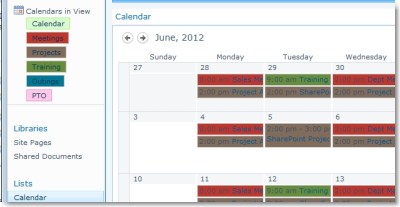
- My text is hard to read. Fortunately from here I can use the full arsenal of CSS and change font colors, sizes, spacing, etc.
- To change the font color, add the following for each color number you want to change (#ffffff is white, you could use any color you want here as well.)
.ms-acal-color3 div, .ms-acal-color3 div a, .ms-acal-apanel-color3 SPAN {color: #ffffff !important} - Click OK in the task pane to close it. Click Stop Editing in the ribbon to stop page editing.


And here we have it!
You can also modify the default light green item by adding these CSS classes. However, if you do, make sure to put it at the top of your CSS text, also, in my case here, any colors not using a new color scheme, like my pink PTO, will be changed to whatever color you put here.
.ms-acal-item {
 BORDER: #xxxxxx; BACKGROUND-COLOR: #xxxxxx
}
.ms-acal-default-hover {
 BORDER: #xxxxxx; BACKGROUND-COLOR: #xxxxxx
}
.ms-acal-apanel-item {
 BORDER: #xxxxxx; BACKGROUND-COLOR: #xxxxxx
}
And if you want to change the default font color:
.ms-acal-item div, .ms-acal-item div a, .ms-acal-apanel-item SPAN
{ color: #xxxxxx !important}
Happy SharePointing!

 David Lozzi
Hi David, thanks for all your info. I’ve got it half working. I started with my calendar. Created overlay’s for each view i want to show in a different color. Then I created a calendar webpart on my main page, here I did your source code with my colors in the html form above that calendar web part. It works, though I don’t have a legend. My problem is, when you go to the calendar I can’t get my code changed there. So it might be one color on my web part, but then the calendar page had a different color. I don’t see where you can add a webpart to the calendar page. I also tried editing the calendars default form web parts, but that did nothing. Please help, where am I going wrong?
LikeLike
Hi Tammy,
A web part and the primary calendar view have to be setup separately. You should be able to setup the same layers and color codes so they match. The web part does not have a legend, unfortunately.
Editing the calendar page should be accessible via the Site Actions menu, as noted in the post. Are you able to see the Site Actions button?
LikeLike
It’s the primary calendar view that I’m having a problem with. I can’t find a place that I should place the html code.
LikeLike
You have to add the HTML Form Web part to the page, preferably below the calendar web part. The first step in doing so is clicking Site Actions > Edit Page. Do you see this option?
LikeLike
I’m not sure how I could have missed that yesterday. It had only come up as a list. Thank you very much for your help. Now I’m trying to figure out how to change the text color. I need to make some white and some black. Is this just a one line html for each of my nine colors, or do I need to add 3 more lines per color? And if you could send me the code it would need to be. Currently I have for this for one color. .ms-acal-color1{ BACKGROUND-COLOR: #8B0000 } .ms-acal-selcolor1{ BACKGROUND-COLOR: #8B0000 } .ms-acal-apanel-color1{ BORDER-COLOR: #C3B7AC; BACKGROUND-COLOR: #8B0000; } Sorry, I’m not a coder. Thanks
LikeLike
Hi Tammy,
I’m glad this is working out for you. The text colors can be changed, note the last couple of lines in the post, I stuck them in there at the end. Let me know.
LikeLike
Thanks again David, you rock. Ok, I added the text color line and it changed it for all the colors. Which works ok, but what should I do if I want one or two of the colors to have a different text? Where would I put that code and would I need to change the other one line of text code?
LikeLike
great question! I will find you the right CSS, stand by.
LikeLike
David, Just wondering if you were able to find out how I would write my code if I want the text of ONE particular calendar item to be black text instead of white?
LikeLike
hi Tammy,
Sorry about that, since I replied, it’s been a rather busy few days. You want to change the font color of one item, not of a single overlay calendar?
LikeLike
Correct, I have a mixture of dark and light colors, the white text color looks good with almost all, but I have one lighter background that needs to have a dark text. I did notice that the html only changes the web part, how would I actually change it in the pages, so when I create the overlay, I can select the new color options, rather than the standard on sp? When I display it on the page, it’s the new color choices, it is just when I’m creating the overlay I have the old options.
LikeLike
So you have a light color where you want a dark color. Try adding this to modify the font color:
.ms-acal-colorX .ms-acal-sdiv, .ms-acal-colorX .ms-acal-sdiv a{
color: #xxxxxx !important
}
.ms-acal-apanel-colorX SPAN{
color: #xxxxxx !important
}
if this works, I’ll update my post.
LikeLike
I tried (replacing the X with 5 for color 5), I was able to get the one light background have black text, but it does not show up as black text in the Legend. I also tried this for a second line color that also was light and I just copied and pasted the code, but changed the 5 to a 6. It didn’t change the text for my color6.
LikeLike
The second line of CSS I provided should cover your legend color needs. So you’ll need both lines per number.
LikeLike
I thought I did post the second line, my code looks like this: .ms-acal-color1{ BACKGROUND-COLOR: #8B0000 } .ms-acal-selcolor1{ BACKGROUND-COLOR: #8B0000 } .ms-acal-apanel-color1{ BORDER-COLOR: #C3B7AC; BACKGROUND-COLOR: #8B0000; } .ms-acal-item div, .ms-acal-item div a, .ms-acal-apanel-item SPAN { color: #FFFFFF !important} .ms-acal-color2{ BACKGROUND-COLOR: #006400 } .ms-acal-selcolor2{ BACKGROUND-COLOR: #006400 } .ms-acal-apanel-color2{ BORDER-COLOR: #C3B7AC; BACKGROUND-COLOR: #006400; } .ms-acal-color3{ BACKGROUND-COLOR: #0000CD } .ms-acal-selcolor3{ BACKGROUND-COLOR: #0000CD } .ms-acal-apanel-color3{ BORDER-COLOR: #C3B7AC; BACKGROUND-COLOR: #0000CD; } .ms-acal-color4{ BACKGROUND-COLOR: #B0C4DE } .ms-acal-selcolor4{ BACKGROUND-COLOR: #B0C4DE } .ms-acal-apanel-color4{ BORDER-COLOR: #C3B7AC; BACKGROUND-COLOR: #B0C4DE; } .ms-acal-color5{ BACKGROUND-COLOR: #ADFF2F } .ms-acal-selcolor5{ BACKGROUND-COLOR: #ADFF2F } .ms-acal-apanel-color5{ BORDER-COLOR: #C3B7AC; BACKGROUND-COLOR: #ADFF2F } .ms-acal-color5 .ms-acal-sdiv, .ms-acal-color5 .ms-acal-sdiv a{ color: #000000 !important} .ms-acal-apanel-color5 SPAN{color5: #000000 !important } .ms-acal-color6{ BACKGROUND-COLOR: #7CFC00 } .ms-acal-selcolor6{ BACKGROUND-COLOR: #7CFC00 } .ms-acal-apanel-color6{ BORDER-COLOR: #C3B7AC; BACKGROUND-COLOR: #7CFC00; } .ms-acal-color6 .ms-acal-sdiv, .ms-acal-color6 .ms-acal-sdiv a{ color: #000000 !important} .ms-acal-apanel-color6 SPAN{ color6: #000000 !important } .ms-acal-color7{ BACKGROUND-COLOR: #4169E1 } .ms-acal-selcolor7{ BACKGROUND-COLOR: #4169E1 } .ms-acal-apanel-color7{ BORDER-COLOR: #C3B7AC; BACKGROUND-COLOR: #4169E1; } .ms-acal-color8{ BACKGROUND-COLOR: #BC8F8F } .ms-acal-selcolor8{ BACKGROUND-COLOR: #BC8F8F } .ms-acal-apanel-color8{ BORDER-COLOR: #C3B7AC; BACKGROUND-COLOR: #BC8F8F; } .ms-acal-color9{ BACKGROUND-COLOR: #DEB887 } .ms-acal-selcolor9{ BACKGROUND-COLOR: #DEB887 } .ms-acal-apanel-color9{ BORDER-COLOR: #C3B7AC; BACKGROUND-COLOR: #DEB887; }
LikeLike
My test calendar doesn’t have as many overlays as yours, but working with 2, I was able to change colors using your CSS. There was one type in your code, search for { color5:, should be just { color:.
I also moved the default text color CSS, .ms-acal-item div, .ms-acal-item div a, .ms-acal-apanel-item SPAN, to the top of the file.
Let me know if that helps.
LikeLike
David, I’m sorry for not knowing coding. I know this is supposed to be simple. How and where did you move the default text color CSS? I thought the 5 after the color was the number of the color of text I was trying to change. I’ll remove the 5, but if you could let me know about the default text. Thanks so much, Tammy
LikeLike
Just to clarify,
I moved from line 4 to top
.ms-acal-item div, .ms-acal-item div a, .ms-acal-apanel-item SPAN { color: #FFFFFF !important}
And this line
.ms-acal-apanel-color5 SPAN{color5: #000000 !important }
has a type in the style def, color5: #000000, should just be color: #000000.
Let me know if that works.
LikeLike
David, I was able to get it to work and added it to each line I wanted to change the color of text for. The weird thing was, when I took the 5 off of {color5: it fixed my problem in the legend, but then the event name was in the new color, but the time was in a different color, but that was not the case in the other line. The code was the same for each, but the other happens to match with the time color. If that makes any sense.
LikeLike
That is a little odd, but I’m glad you were able to get it to work!
LikeLike
Hello David, thanks for this help! I hate identifying sharepoint CSS classes, so you’ve saved me (and a lot of people!) a lot of time.
I’ve implemented your solution, and it is only half-working for me. The left-nav that shows each of the calendars in the view is correctly colour coded, but the actual calendar entries are not. I can only assume it’s because there is a delay in rendering the calendar items – by which I mean, the ‘body’ of the calendar is rendered a little bit before all the events appear. They do correctly change colour when an event is clicked, though!
I’ve tried moving the css to a jQuery function that’s called on document ready, but still no joy – a sample alert shows this being called before the calendar events are rendered.
Any ideas?
LikeLike
Hi there. It’s not necessarily a page load issue, as CSS is available almost immediately on the page, and since the events are loading a little later, that’s even better.
Since the color appears on click, you have some classes in place. Possibly the issue is around a typo? If you want, email me your CSS and I can take a look, david.lozzi at slalom dot com.
Thanks,
LikeLike
Hi David, I created the calendar overlay using your instructions (thank you) and assigned colors to various calendars. The calendar overlay displays the event entries with the colors assigned to those calendars, but the shortcut links (legend) on the left navi pane are not color coded, they are all clear. Do you know why the legend shortcut links are not color coded similar to the colors assigned to the associated calendars? Thank you!
LikeLike
Hi Nicole. The left panel is handled by the ms-acal-apanel… class. Confirm that these are correct. If you want, you can email me your CSS and I’ll take a look, david at lozzi dot net.
LikeLike
HI David, So I forgot the last step, to add , and now my main calendar is gone. I cannot figure out how to get back to edit the web part. Can you be of any help?
LikeLike
Hi Bill, Sure thing. I think the comment missed something ” I forgot the last step, to add , and now…”. Add what exactly? You can view all web parts on the page by going to Site Actions > Edit Page. If a web part is hidden, it should should up in this view. Let me know. – David
LikeLike
Thanks for getting back to me so soon. I meant to say that I forgot to put in at the end. Now the when I click calendar in the navigation a blank page shows up. I can click the color coded views to see them but the combined view is gone. And when I click Site Actions on the blank page, it wont give me the drop down list any longer. Very strange! Any other ideas?
LikeLike
Maybe there is a way to see that web part we created in Sharepoint Designer? Would you know about that?
LikeLike
ok, I was able to modify the code through designer and the calendar has come back. Sorry to be a pain, as you can probably tell, I am new to this. The only issue I have now, is that all calendar items were duplicated. One of each in white and their respective colors.
LikeLike
Hi David – I am having the same problem as Bill did. The problem occurred because I was not following directions properly and I only typed into the web part html box before I hit save and nothing else.
Now I cannot go to Site Actions>Edit page to remove the web part, because the Site Actions menu no longer drops down. In fact, none of the drop downs on the page work anymore, including ‘Support’ and ‘Tools’.
I have checked in SharePoint Designer like Bill explained, but I can’t figure out what he did to fix it. Can you tell me where to go in SharePoint Designer to just remove this new web part and put my calendar back to normal?
Thanks so much for your help!
LikeLike
What you can do is enter ?contents=1 at the end of the web address, and press enter. This will allow you to remove the problem web part and start over.
LikeLike
Adding ?contents=1 at the end of the web address to remove the web part worked perfectly, Thank you!
LikeLike
Excellent! Happy SharePointing!
LikeLike
Hi Bill, you’re seeing duplicates because the base view has everything still in it. You’ll need to filter out the base view to exclude the items which are in other views.
LikeLike
If it helps to troubleshoot – I replaced with after the Source Editor step…
LikeLike
Hi David,
Thanks a lot for this. It really helped. And for others not seeing the colour change, Davids example code only changed options 3,4,8 & 9. Then make sure you refresh your view properly. The change in colours do happen.
However I have another question David I hope you can answer (and clearly form it you will tell I am not a coder but a cut and paster).
When I pull the consolidated calendar in via a webpart to another page the colours don’t ‘come with it’. Do I need to replicate the CSS within the page that will now contain the Calendar webpart?
Many Thanks
LikeLike
Hi Dave,
I’m glad I could help. And yes, you need to include the CSS on any page you’re creating the calendar on. Alternatively, you could keep the CSS in your master page or alternate CSS file, which would make the colors apply across your entire site. If this is of interest, let me know, I’ll walk through how to.
Thanks,
David
LikeLike
Hi David,
This does not work when you drop the calendar as a web part onto a page. You’re not able to add overlays when editing the web part and in any case all the events are marked with the same class (ms-acal-item) in the HTML no matter which overlay they are from so a css class would not help. Any ideas?
Thanks,
Darren
LikeLike
Hi Darren,
What version of SP are you using? This only works on 2010/2013. Did you see this post on how to setup the overlays? https://davidlozzi.com/2012/01/26/color-code-your-sharepoint-calendar/ You’ll need overlays before you can apply the colors. Let me know.
Thanks,
David
LikeLike
Never mind, I got it working. You need to remove the quotes on the first line and it worked.
LikeLike
Great! How did the quotes get in there? Artifact from copy/paste or a typo? I just want to make sure it’s clean from my end for others. Thanks.
LikeLike
I added the code and it does not work. What am I doing wrong? I have the overlay created.
LikeLike
Hmmm… can you send me your CSS and I’ll take a look? Also, a screen shot of your page would help (to confirm the calendar is configured) Email me david at lozzi dot net or reply and paste it in.
LikeLike
Hi David i was trying this but after adding the Web part, forms, HTML from web part, something odd happened. I can’t see the edit ribbon for the calendar nither add a new event nor any other acction it is just disable. i’m not sure what the problem is and how to solve it, could you please help me.
LikeLike
Uh oh. That doesn’t sound good. What you can do is in the address bar, at the end of the URL, if there are other query string variables (i.e. ?var=val&var=val) add &content=1. If you don’t see query strings, i.e. pagename.aspx, add ?contents=1. This will go to a web part maintenance page where you can remove your web parts.
After you fix it, feel free to email me your CSS and I’ll confirm it’s clean, david at lozzi dot net.
LikeLike
The same thing happened with my attempt. Until you click just above the calendar in line with the arrows/ months/ year then the ribbon appears…
Super code btw – have been trying for a few days now to colour code… just a shame we can’t add more choices – thanks!
LikeLike
I followed your instructions and added the CSS code to the calendar view, but can’t seem to get the colors to change.
Do these instructions work equally on Foundation and Server? I have access to both, but need this work work specifically on Foundation.
LikeLike
Hi Cynthia – this should work on Foundation and Server. Can you paste in your CSS code or email me at david at lozzi dot net. I will try it out on my side. Thanks – David
LikeLike
David,
Wonderful posts, thank you so very much!
I am having some difficulty getting the colors to implement. I have the overlayed calendar all set per your previous post, but when I follow the directions in this post, I am not getting any results. I have double checked that my numbers are correct and CSS mimics yours with my own #s and hex. Is there anything else that I may have done wrong or may be preventing the colors from being modified?
Thanks!
LikeLike
Do you have an existing custom template in place? Could you send me your CSS and i’ll give it a whirl, email to david at lozzi dot net.
LikeLike
David, this code below seems to work just fine. I have a total of 9 calendar views all displaying on one “master” calendar view via calendar overlay. The one below has its event displaying in #e34363 on the master calendar. When I now select that view from the “Calendars in View” section, it now displays the events in the individual view in the same color as the master calendar view. Plus it hides the list name (changes background, border and font) to the default #EEECEA so it doesn’t appear under “Calendars in View”. Finally, I added the “master” calendar view to each individual view for ease of navigation.
I am not a coder, but it’s fun to experiment! Thanks for your effort with this.
.ms-acal-item{
BACKGROUND-COLOR: #e34363
}
.ms-acal-item a{
BACKGROUND-COLOR: #e34363
}
.ms-acal-apanel-item{
BORDER-COLOR: #EEECEA; BACKGROUND-COLOR: #EEECEA;
}
.ms-acal-item div, .ms-acal-item div a,.ms-acal-apanel-item SPAN {color: #ffffff !important}
.ms-acal-apanel-item span {
color: #EEECEA !important;}
.ms-acal-color1{
BACKGROUND-COLOR: #5F04B4
}
.ms-acal-apanel-color1{
BORDER-COLOR: #5F04B4; BACKGROUND-COLOR: #5F04B4;
}
LikeLike
Awesome, great job! Keep experimenting!
LikeLike
Thanks David, enjoyed the solution. Any way to change the color for each of the specific views that are displayed in the “Calendars in View” section so that when a user selects one of them, then don’t get the plain, uncolored calendar view?
LikeLike
Ooohhh… interesting idea. I would think if you took the model from this post, https://davidlozzi.com/2012/06/20/customize-the-sharepoint-calendar-colors/, but only setup the color for .ms-acal-item div, .ms-acal-item div a, .ms-acal-apanel-item SPAN {color: #xxxxxx !important}. This will affect that default color green. HTH!
LikeLike
Making some headway thanks…I’ll let you know when I’ve ironed out a few more wrinkles. In the meantime, have you an equally impressive solution for removing Sat/Sun from the display? Wasted, high-rent real estate!
LikeLike
Great idea, I’ll see what I can do :-) . Let me know how it goes!
LikeLike
Well I figured it out right after I posted my last question.
LikeLike
David it is not clear to me where to add the font color line of code. Do I add a new web part for the font color?
LikeLike
Hi David,
Any ideas whether you can update the color dropdown names on the Calendar Overlay setup screen (_layouts/AggregationCustomize.aspx)?
These don\’t appear to update when you over ride the CSS from what I can tell.
LikeLike
Unfortunately there isn’t an easy way to do this. I make note of that, and provide the list of existing colors. You should make a map of the old color to your new color for your reference.
It would take either a custom solution or some serious Javascript to override the options.
LikeLike
That’s what I had assumed too. I guess it would be relatively easy to update with some jQuery. It’s probably not worth it though.
Its funny how there’s inconsistencies like this throughout SharePoint. For styles in the ribbon dropdowns you can easily customize the title that appears using the “-ms-name” property. You would think this would be a perfect opportunity to do something similar.
Instead it’s based off themes. In my eyes you wouldn’t usually want the color overlays to change to match the theme, but I guess that depends on how you are using themes.
LikeLike
Yeah, another SP oddity.
LikeLike
David Can we add More than 10 calendars in Calendar overlay without any custom codes?
LikeLike
Unfortunately it appears the 10 calendar limit is an out of the box limitation. You might be able to via custom code, if it’ll let you override it, but I’d question performance at that point. More calendars the slower it may perform.
LikeLike
Great solution! I tried it and it worked. Quick question though, all items past the sixth category seem to take on the color of the first category. Am I doing something wrong?
LikeLike
Can you send me your CSS? email to david.lozzi at slalom.com
LikeLike
Nice – I love the posts that us “non-Developer” types can employ! Thanks!
LikeLike