
above image generated with ChatGPT 4 using Lew’s photo. More below.
Check. This. Out.
What is an LLM Enhanced Workflow for your command line?
LEW, or the LLM Enhanced Workflow, is a utility that allows you to quickly and efficiently interact with your favorite LLM through your command line interface (cli). Simply use your your cli as normal, and if there’s an issue, a question, or you need help just type in lew and it’ll help you out with your latest command and output!
Yea but really, what is an “LLM Enhanced Workflow”?
A decent definition of the acronym LEW. I came up with the name LEW first, then tried to figure out what it could stand for. I wanted something easy to type, with letters on or above the home row. Lew is also a good friend of mine, who I talk with a lot, so this is a special project ’cause I get to talk to “him” a lot more now. The avatar for LEW is from a photo of Lew ;).
How to use LEW
First, you have to set it up, see my GitHub repo LEW LLM for CLI for instructions. As of this writing, it only works on Mac. (if you want to port it to Windows, fork the repo and go for it! Let me know!). Once it’s all setup, it’s super easy to use.
Easy as lew
In your cli, type in lew. Yea, that simple. LEW will read your last command and its output then call ChatGPT and stream back the response, telling you how to fix it. If LEW wants you to run a command, it will prompt you before running it. Let it run the command and it’ll continue the conversation with the new content it’s received from the commands it ran! So simple.
For example, I run git push and it errors with:
 error: failed to push some refs to 'https://github.com/DavidLozzi/myrepo.git'
 hint: Updates were rejected because the remote contains work that you do
 hint: not have locally. This is usually caused by another repository pushing
 hint: to the same ref. You may want to first integrate the remote changes
 hint: (e.g., 'git pull ...') before pushing again.
 hint: See the 'Note about fast-forwards' in 'git push --help' for details.
Now, type in lew and let LEW fix it for you:
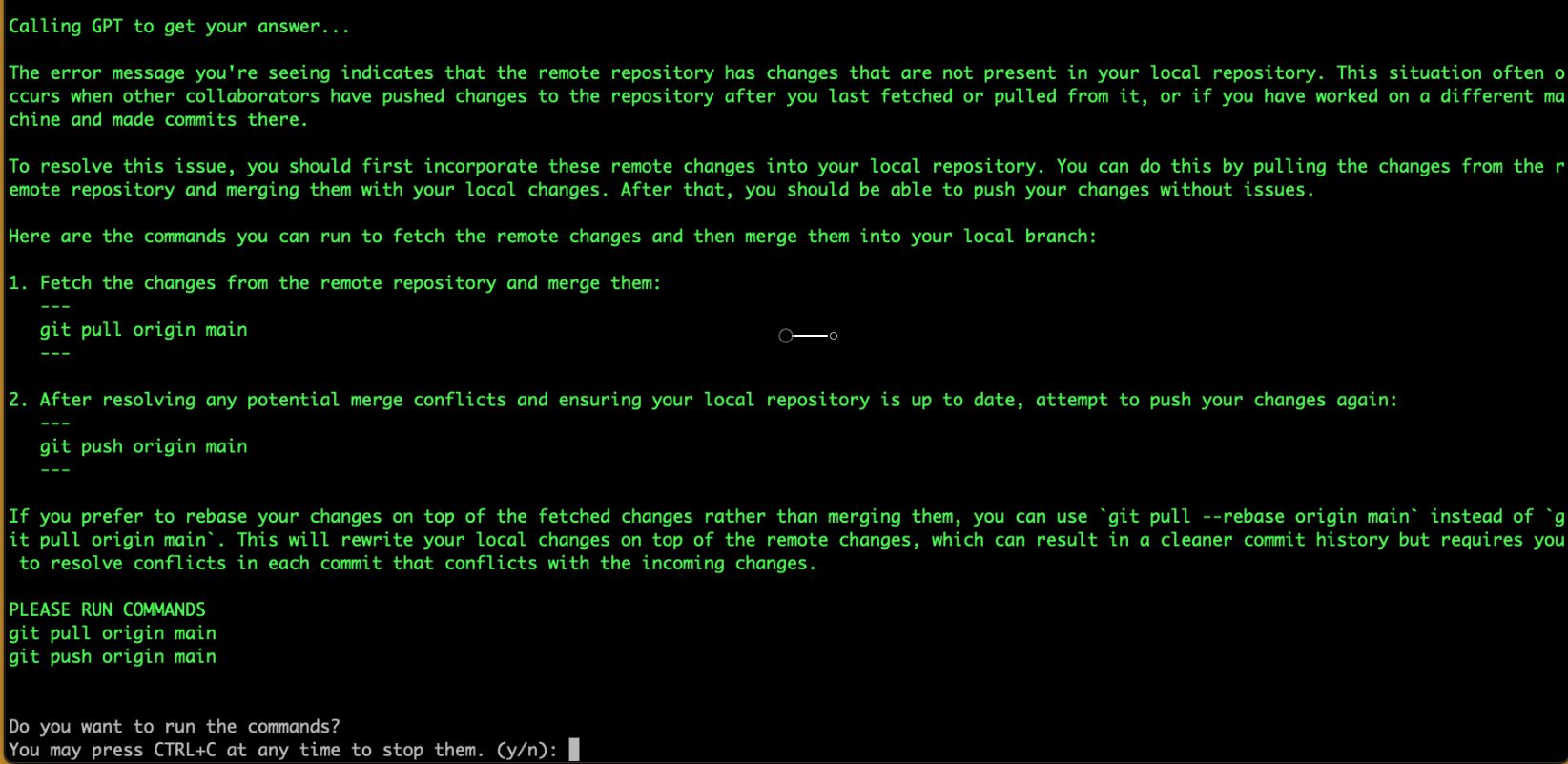
Important to note here, and a reminder, that GPT and LLMs are non-deterministic. This response is a unique, one-time response, you will have different responses if you were to post the same question. The responses may be different, but the solutions should more or less be the same.
GPT knows how to fix this problem! And then wants to run the 2 commands to fix this problem for me! So I go ahead and let it do it by pressing y. Check out the video above for this example in real-time.
Adding your comments to lew
You can also include a message with the previous command by just adding it after lew "can you check out xyz". This can help further explain to lew what you’re looking for specifically, or if you’re looking to learn more about a command’s output. You could say lew "what does this mean?" or lew "how can I then update the file".
Starting a fresh conversation with lew
By default, LEW always grabs the last command and output and sends it along to ChatGPT. If you want to start fresh, cause in the real world our terminals are not always a single line of coherent thought, you can add the --cnt 0 parameter. This will exclude any previous command and output and only run what you say. For example: lew "using aws please list all of my s3 buckets" --cnt 0
Have fun!
There is a lot LEW can do because there’s a lot ChatGPT can do. I’m especially excited about this because there are many times things go wrong throughout the developer’s or IT admin’s day, and using something like LEW can just speed it up. Here’s some more ideas on what to do:
- Anything in AWS or Azure, literally, just keep asking LEW about commands and what you want to do!
- Troubleshoot bad code builds, failing tests, etc.
lew "find the top running cpu process and kill it" --cnt 0- After doing an
ls -alasklew "how what are the permissions on the bin folder?"
What do you think? What are you going to use it for? Let me know below! If you have any issues make sure to post them on the github repo!
Subscribe to my blog and get posts like this in your inbox. Share your email below, or follow me on Threads, LinkedIn, or BlueSky.

 David Lozzi